



This post is a step-by-step guide to getting started with The Guide’s Guru. For existing users, it is a good refresher to learn more about adjusting forms, adding people to groups, and using the map.
Before getting started, it might be helpful to watch this short video of The Guru in action. If you are more of a visual learner, or are feeling overwhelmed with the process, watch the video at the end of this post and see the spaceman do everything in this post in less than 2 minutes.
Getting Started
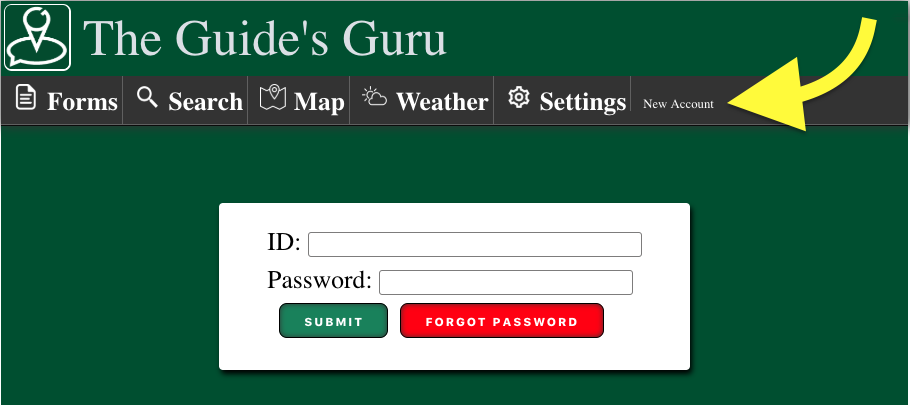
The first step is to go to www.guidesguru.com/guru and find the ‘New Account’ button. You can also press the ‘LOGIN’ button in the menu bar of this website, but do that in another window so that you can follow along with this post.
Follow the prompts until you arrive at the next crucial step – the billing form. Here is where you’ll decided what kind of group you want to establish.
If you are a business with several people who will be using The Guide’s Guru throughout a set period of time you can prepay for either 3 or 6 months and receive a per user discount.
If you aren’t sure how many people you’ll have in your group, and/or prefer a pay-as-you-go approach, then the monthly option is the best one for you.
Subscription Options
$9 / month
$11 / user / month
$10 / user / month
$9 / user / month
* Once you have created your group, you can set it to INACTIVE status which means all your data is preserved, but only the group owner can access it, and no new data can be entered. This is ideal for ‘off-season’.
**If your group membership is larger than the number or users in your subscription, then you will be charged for those additional users at the monthly rate.
The following sections will guide you through the admin configurations that will allow you to share and store information as a group.
Group Membership
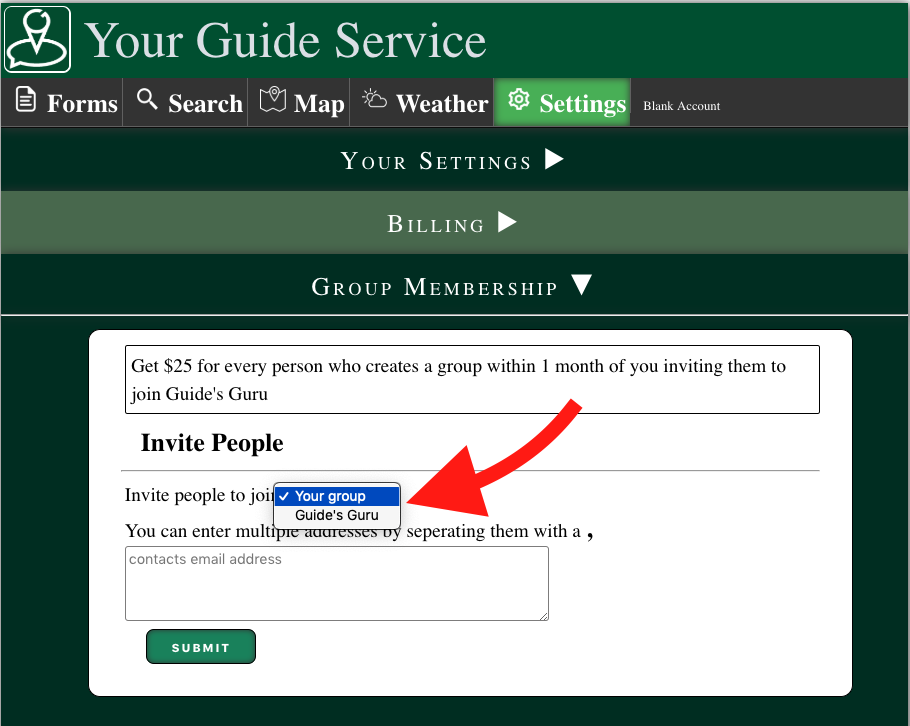
You can cut and paste a list of email address from an old group email to simplify the process of inviting people to join The Guide’s Guru. Since the number of users in the group is directly related to billing, only the group owner can invite people into, or out of, the group. If you aren’t the owner of the group your only option is to invite people to use the platform, and collect your referral fee.
Check out our FAQ for more information about the different types of user permissions (i.e. admin vs user).
Setting Up & Adjusting Forms
The Guide’s Guru allows you to select what type of information you want to collect on each form. By having several different types of data on each form, you will be able to collect a complete dataset. That means later on, being able to search for, and sort, your information by those same data types.
It is recommended to make at least one field required, and to attach a USER field if you think that you might want to enter information as somebody else. The LINK field can be used to access advanced Guide’s Guru functions, and other outside resources.
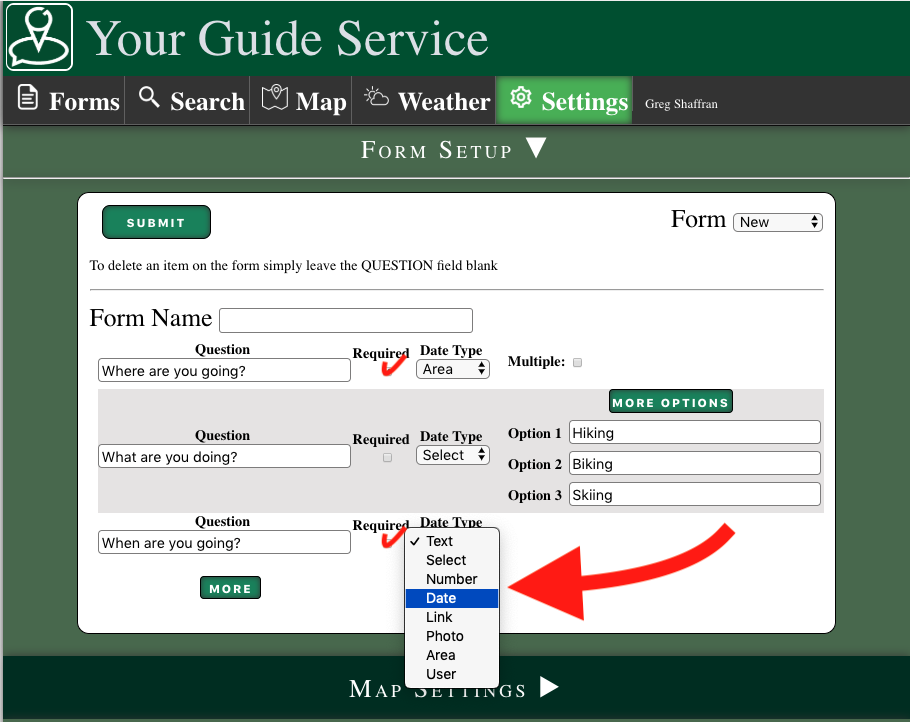
Here are a few examples of the different types of information that might wanted to be collected. You don’t have to include a date field because all entries will automatically be stored with date information, but by having that field you can enter information for previous, or future, events.
- TEXT – Training Name
- SELECT – Subject
- NUMBER – Hours
- TEXT – Notes
- DATE – When
- DATE – When
- AREA – Where
- PHOTO – What did you see
- TEXT – Notes
- AREA – Where
- SELECT – Type of explosive
- NUMBER – How much explosive
- SELECT – Results
- DATE – When
Using The Map
The Guide’s Guru map is a great place to share route and area information. If you already have an area atlas digitized somewhere (i.e. Google Earth, CalTopo, GAIA) contact us and we can upload those files directly to your atlas.
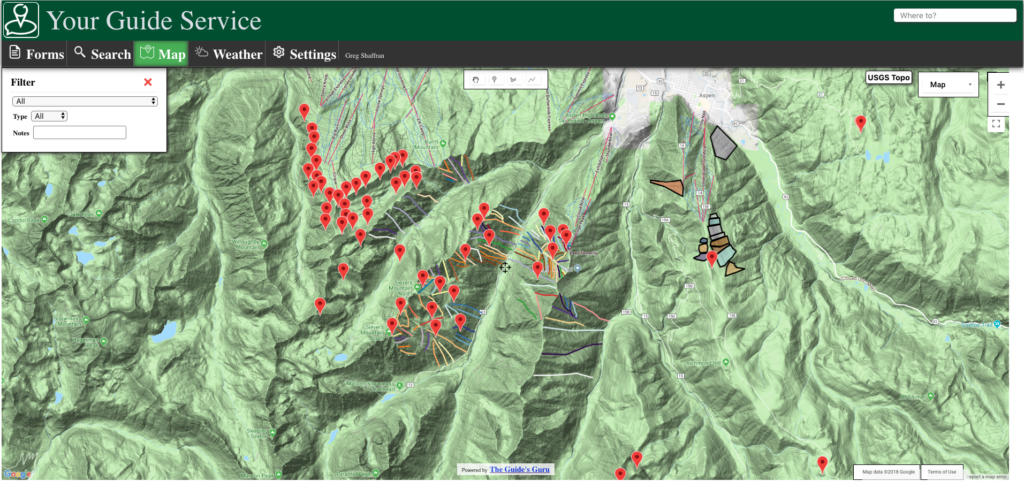
You can use the map without ever having any area tags, but as your list of places gets larger you will find it a convenient way to organize and view your atlas. The red arrow in the below photo shows the map being sorted by a SELECT tag.
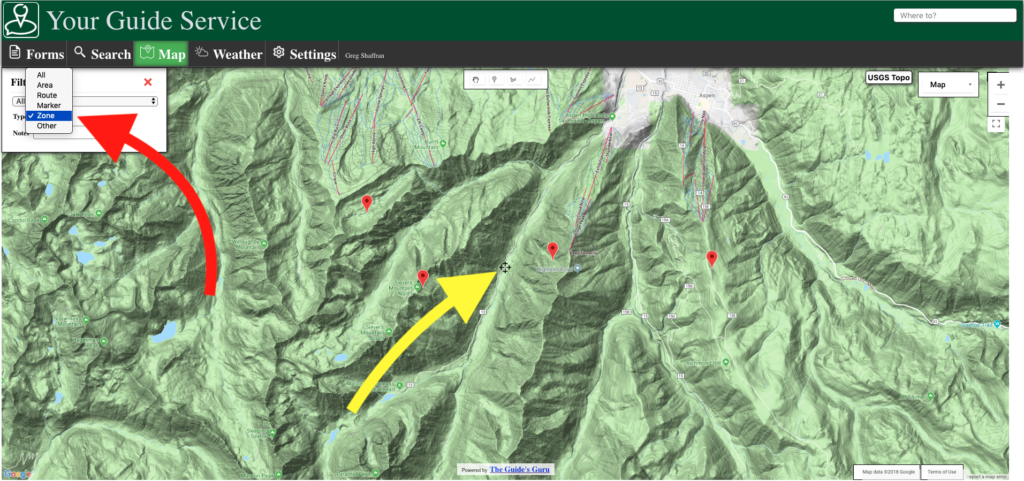
As you move the map, where you see the center point (yellow arrow) is where the NOAA spot forecast will be from on the weather tab. It will also go to the nearest NWS site and pull current weather information.
Here it is. The spaceman will now do everything described in this post in less than 2 minutes.
Please contact us directly for more ideas and suggestions as to more ways to start using The Guide’s Guru.
Also, follow us on Facebook, Instagram, and Twitter. Or better yet, contact us directly and let’s see how we can work together to help you get the paperwork done, and get back outside.

Leave a Reply
Your email is safe with us.